
Before setting up the app, make sure you have the following:
Before connecting Phone Validator to Make, you will need your API key.
- Log in to your account at PhoneValidator.com.
- Click your name in the top right corner and select My Account.
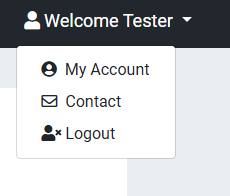
Click your name in the top right corner and select My Account.
- On the My Account page, locate the API Keys row and click Manage API Keys.
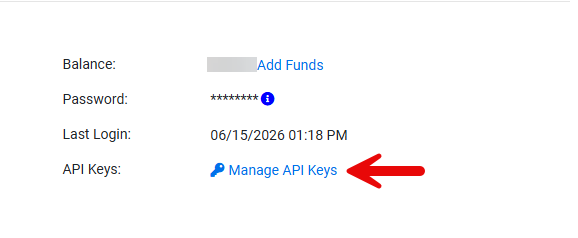
Click Manage API Keys on the My Account page.
- In the Manage API Keys window, copy the key next to your Primary entry. Keep this key safe — you will need it in the next step.
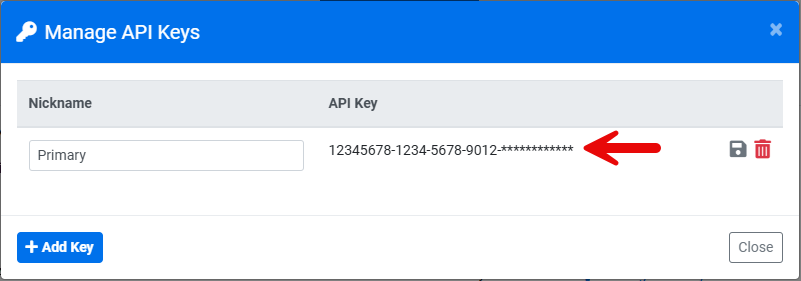
Copy the API key next to your Primary entry.
- Log in to your Make account at make.com.
- In the left sidebar, click Scenarios and then click Create a new scenario.
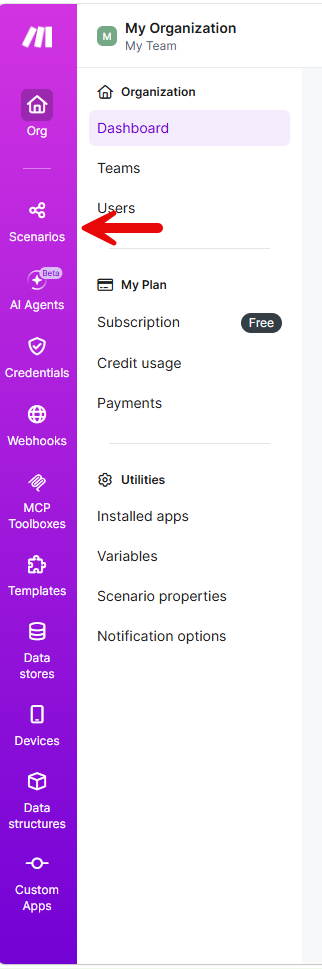
Click Create a new scenario in the Make left sidebar.
- Click the + button to add a module and search for Phone Validator.
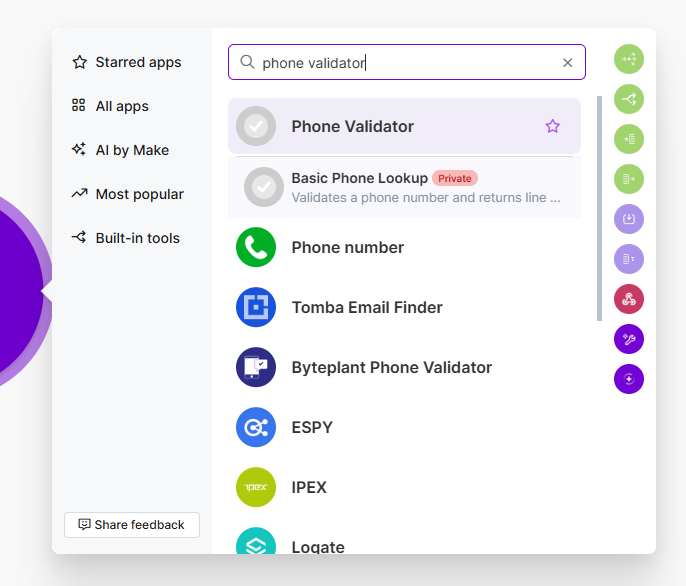
Search for Phone Validator in the Make module search.
- Select Basic Phone Lookup from the list of available modules.
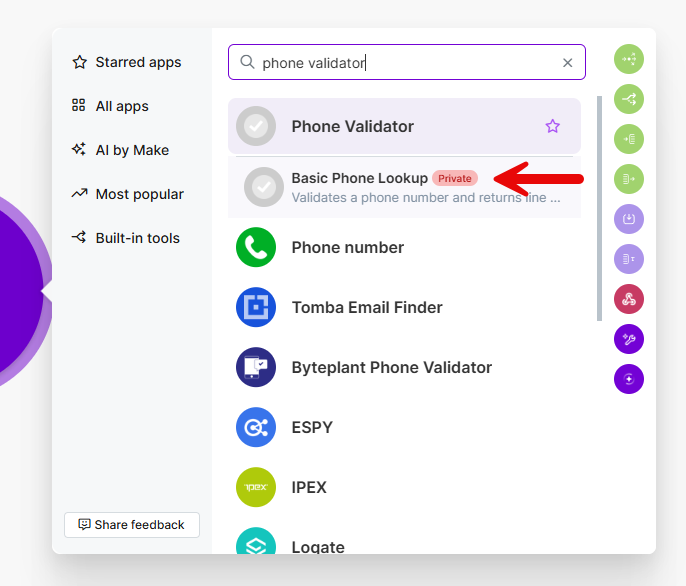
Select Basic Phone Lookup from the Phone Validator modules.
- In the Connection field, click Add.
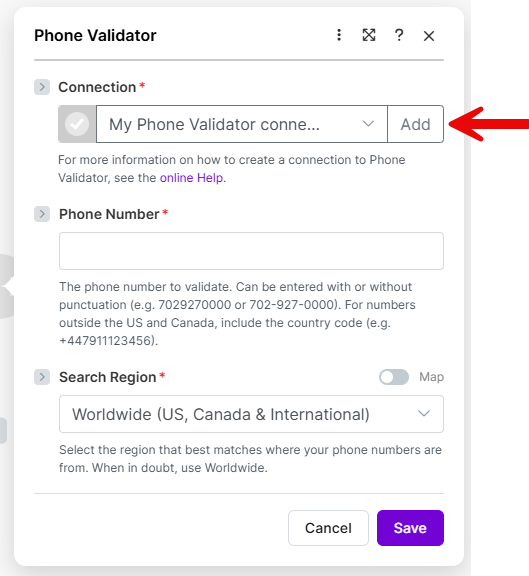
Click Add next to the Connection field.
- In the connection window, paste your Phone Validator API key into the API Key field.
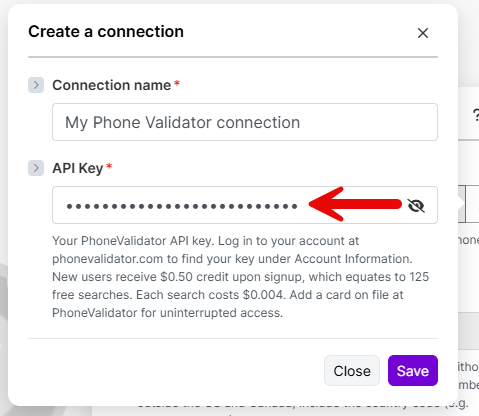
Paste your Phone Validator API key and click Save.
- Click Save. Make will automatically verify your API key and return you to the module configuration screen.
- Your connection is now saved and ready to use across all your Make scenarios.
Once connected, configure the module with the following inputs:
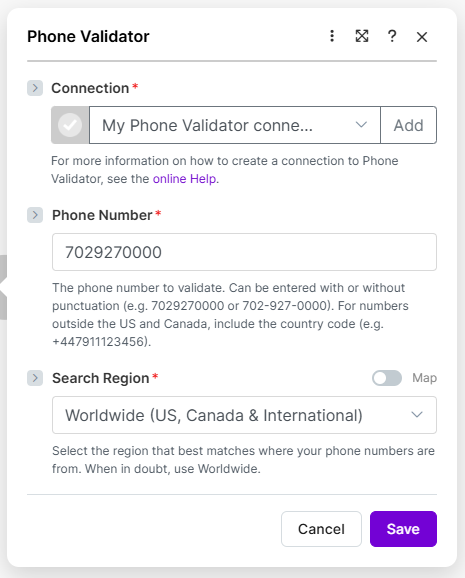
Configure the Basic Phone Lookup module with a phone number and search region.
After the module runs, the following data is available to use in subsequent modules in your scenario:
| Field | Description |
|---|---|
| Phone Number | The phone number that was validated |
| Line Type | CELL PHONE, LANDLINE, VOIP, TOLL-FREE, UNKNOWN, or FAKE |
| Phone Company | The carrier (e.g. T-Mobile, Verizon, AT&T) |
| Phone Location | City and state/region of the number |
| Country | Full country name |
| Country Code | Two-letter country code (e.g. US, GB, CA) |
| Outside US | YES or NO |
| Fake Number | YES or NO |
| Fake Number Reason | Reason if the number is flagged as fake |
| Cost | Cost of the search in dollars |
| Search Date | Date and time the search was performed |
| Status Code | 200 = success, all other codes indicate an error |
| Status Message | OK or error description |
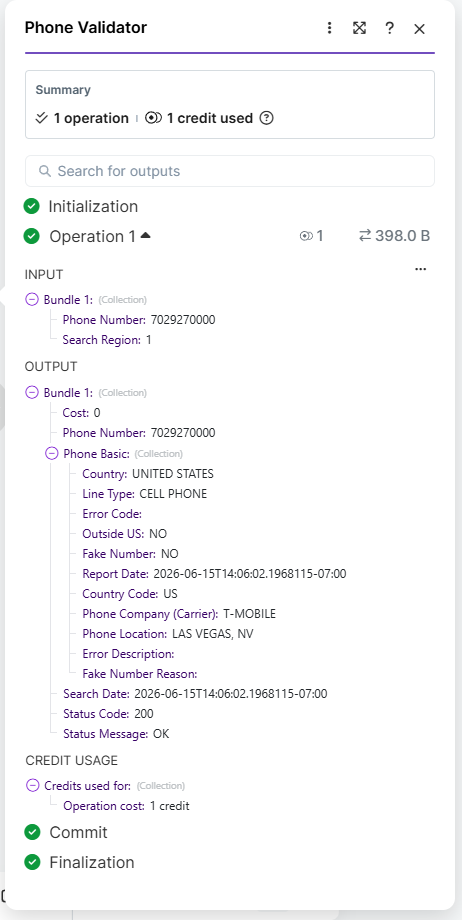
Validation results are available as mapped data for subsequent modules in your scenario.
This example shows how to automatically validate phone numbers submitted through a webhook and record the results in Google Sheets — a common CRM-style workflow.
- Webhooks — Custom webhook (trigger)
- Phone Validator — Basic Phone Lookup
- Google Sheets — Add a Row
- A webhook receives a phone number from a form submission or other source.
- Phone Validator validates the number and returns line type, carrier, location, and fake number status.
- The results are written to a Google Sheet for review or further processing.
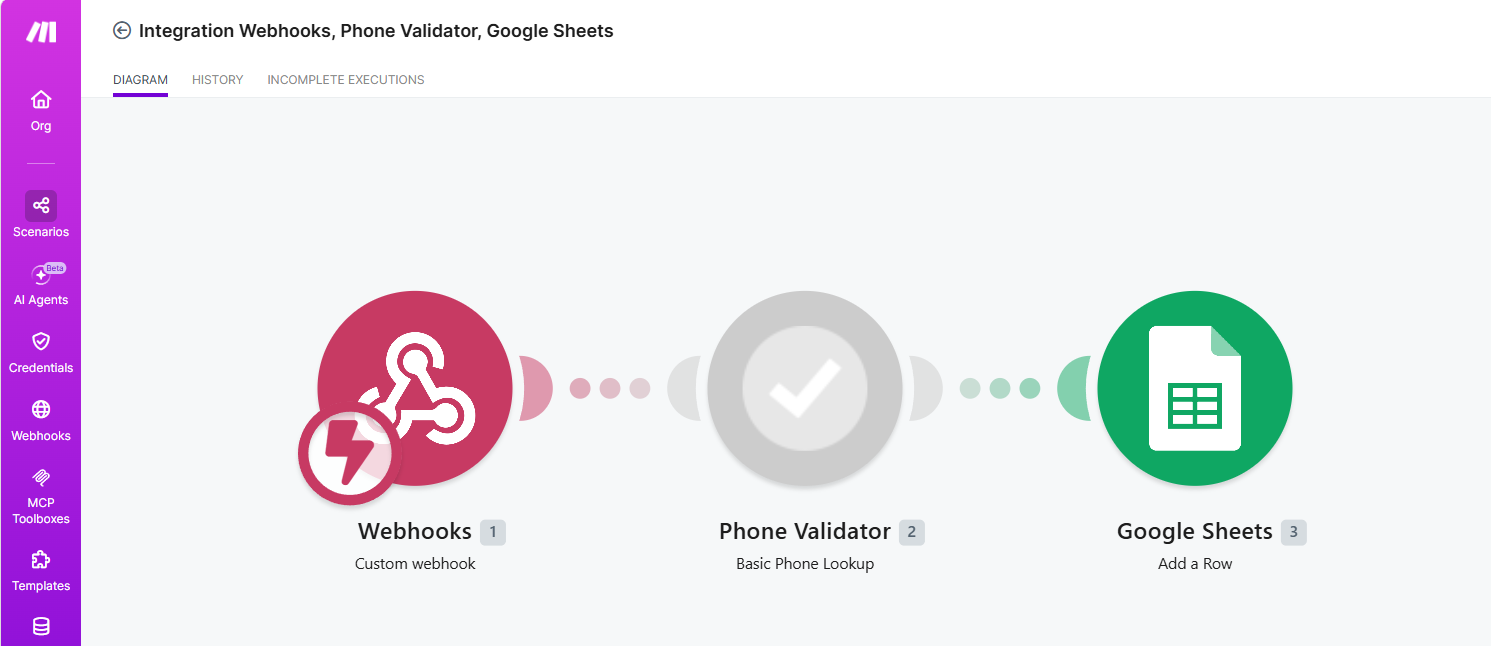
A complete CRM-style scenario using Webhooks, Phone Validator, and Google Sheets.

Phone Validator results written to a Google Sheet row.
Phone Validator uses a pay-per-search credit system. Each phone number lookup consumes one credit from your PhoneValidator.com account.
To manage your credit balance, log in to PhoneValidator.com, click your name in the top navigation bar, and select My Account.
Click your name in the top navigation bar and select My Account.
On the My Account page you can view your current balance and click Add Funds to purchase additional credits.
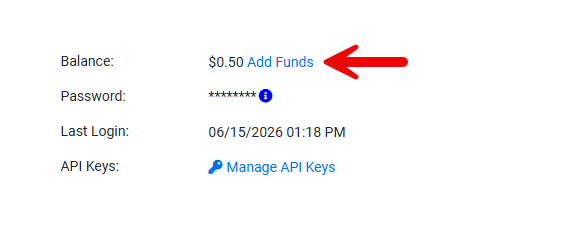
Click Add Funds to purchase additional credits.
To ensure your Make scenarios never stop running due to insufficient credits, set up Auto Refill. This automatically adds credits to your account when your balance falls below a set threshold. Note: Auto Refill requires a credit card on file. Add your card under Credit Cards on File before enabling Auto Refill.
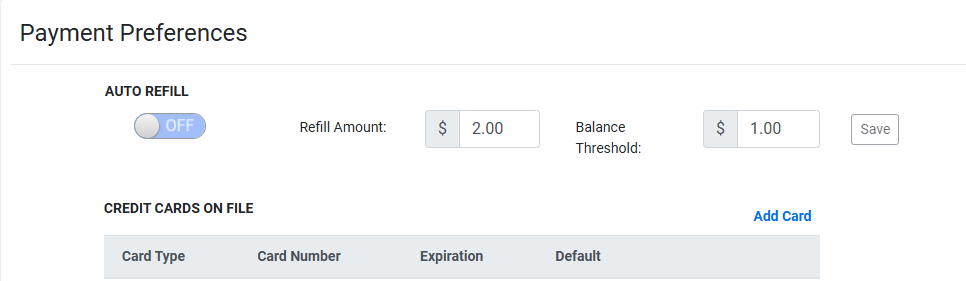
Enable Auto Refill and set your Refill Amount and Balance Threshold. A credit card on file is required.
Ready to get started? Create a free account today.
GET STARTED!